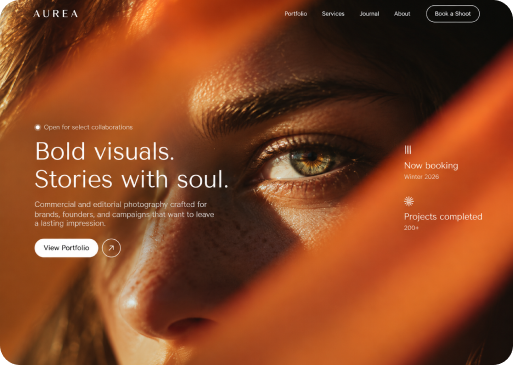
Describe it. See it come to life.
Create original visuals from a simple description. Choose the format, explore multiple results, and turn ideas into images for your websites, campaigns, and brand.
- Text to image
- Multiple visual options
- Landscape, square
& portrait
Start with a
description.
End with
something
worth using.
Create with Magic Lab
-
Create from your own direction
Describe the subject, setting, mood, lighting, colors, and style you want. Magic Lab uses those choices to shape the result.
-
Compare more than one possibility
Explore several generated images from the same creative brief, select the strongest direction, or regenerate when you want a new interpretation.
-
Choose the format before you create
Generate in landscape, square, or portrait so the composition begins closer to the channel and placement you have in mind.

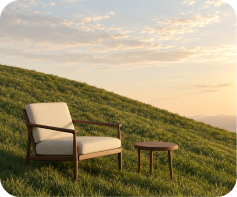
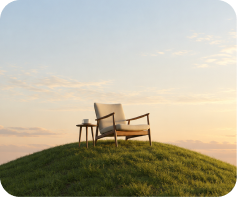
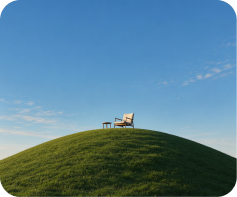
What will you create?
Minimalist surreal landscape with a mid-century chair and small wooden table on a smooth green hill, vast blue sky, golden-hour light, photorealistic, clean luxury editorial style, lots of negative space.
Give your idea enough detail to become visual.
Magic Lab is most useful when the prompt does more than name an object. Add creative context—what the scene should feel like, how it should be lit, and where the image may be used—to guide the output toward your goal.
- Start from examples when you need help shaping the prompt
- See the estimated credit cost before generating
- Generated images are organized under My Files › Magic Lab
From a few words to visual options in three steps.
-
Describe the image
Explain the subject, environment, style, mood, colors, and any visual detail that matters.
-
Choose the format
Pick landscape, square, or portrait to match where the image will be used.
-
Generate and compare
Review several results, keep the strongest, or regenerate for a new take.
One creative space. Visuals for the work you already do.
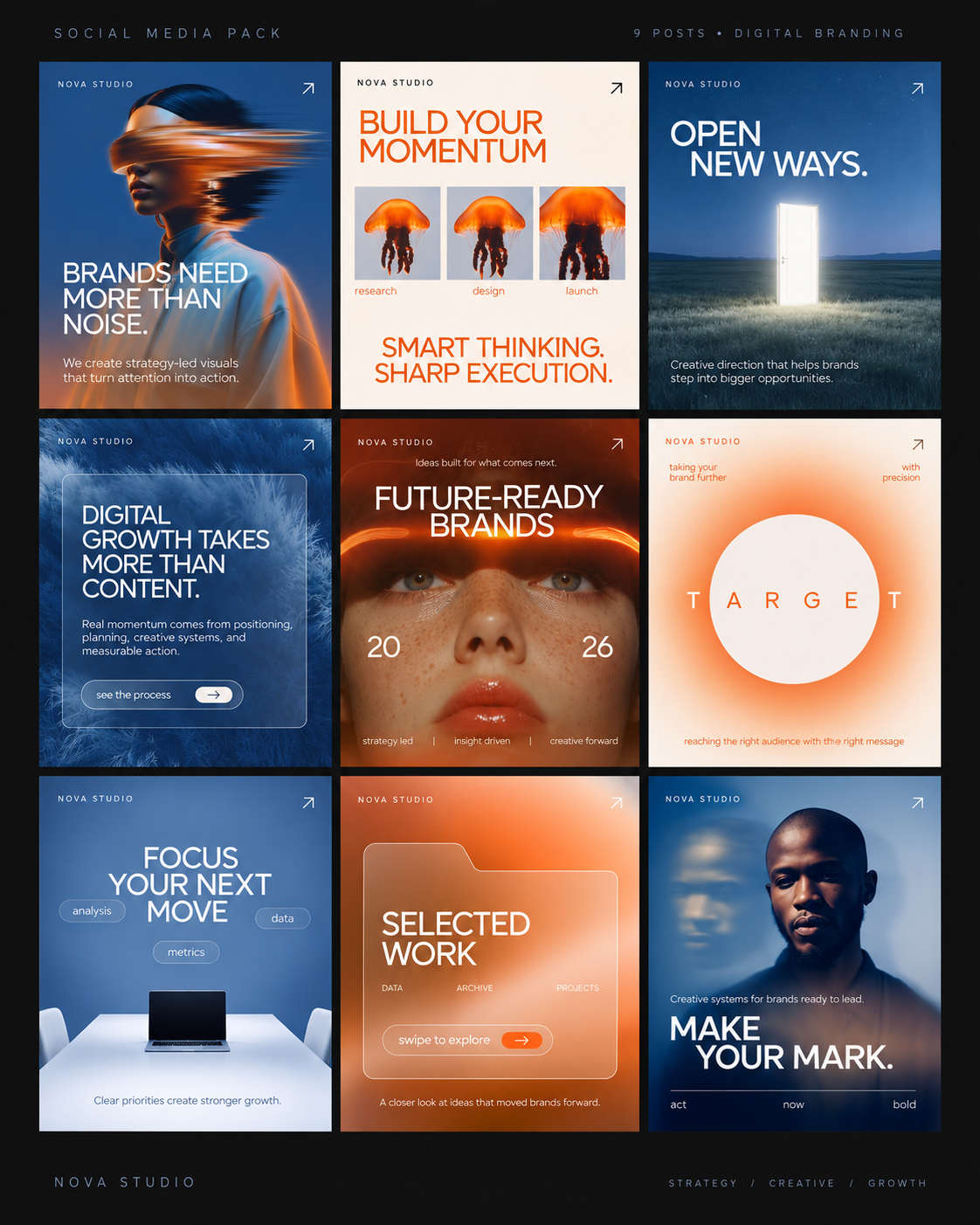
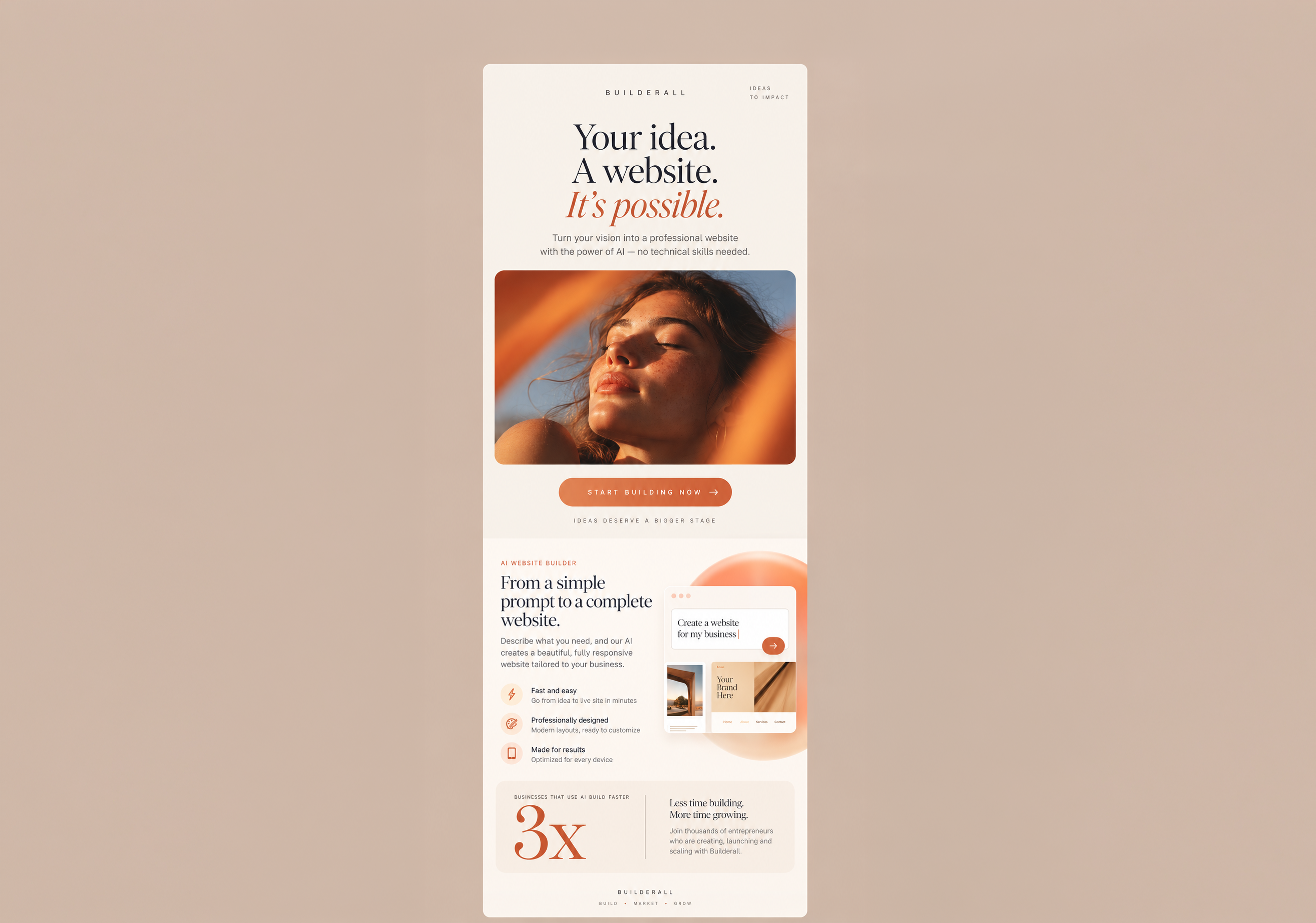
A static use-case grid keeps the page easy to scan and shows the product’s range without relying on a rotating banner.

Create, organize, and
keep moving.
Magic Lab lives alongside the tools that support your creative work. Generated images are saved under My Files, helping users move from experimentation to the next task without losing the result.
-
Magic Lab
Create image options from a description
-
My Files
Find the images generated in Magic Lab
-
Stock Elements
Explore additional visual resources
-
My Brands
Keep brand resources close to the workflow
Frequently asked
questions
You can generate visual concepts from written descriptions for websites, social posts, email campaigns, product scenes, and other brand or marketing uses.
No. The interface guides you through the essential choices: describe the image, select an orientation, generate, and compare the results. More detailed prompts generally provide clearer creative direction.
Choose landscape (4:3), square (1:1), or portrait (3:4) for your image.
Yes. The result view includes regeneration, allowing you to explore a new interpretation of the same creative direction.
Your next visual starts with a few words.
Describe what you need, choose the format, and let Magic Lab turn the idea into images ready to explore.
Create with Magic Lab